Structural Analysis Workflow with Dynamo and Robot
Research Log [2025–09–21]: Building and Troubleshooting an Automated Structural Analysis Workflow with Dynamo and Robot

1. Objective
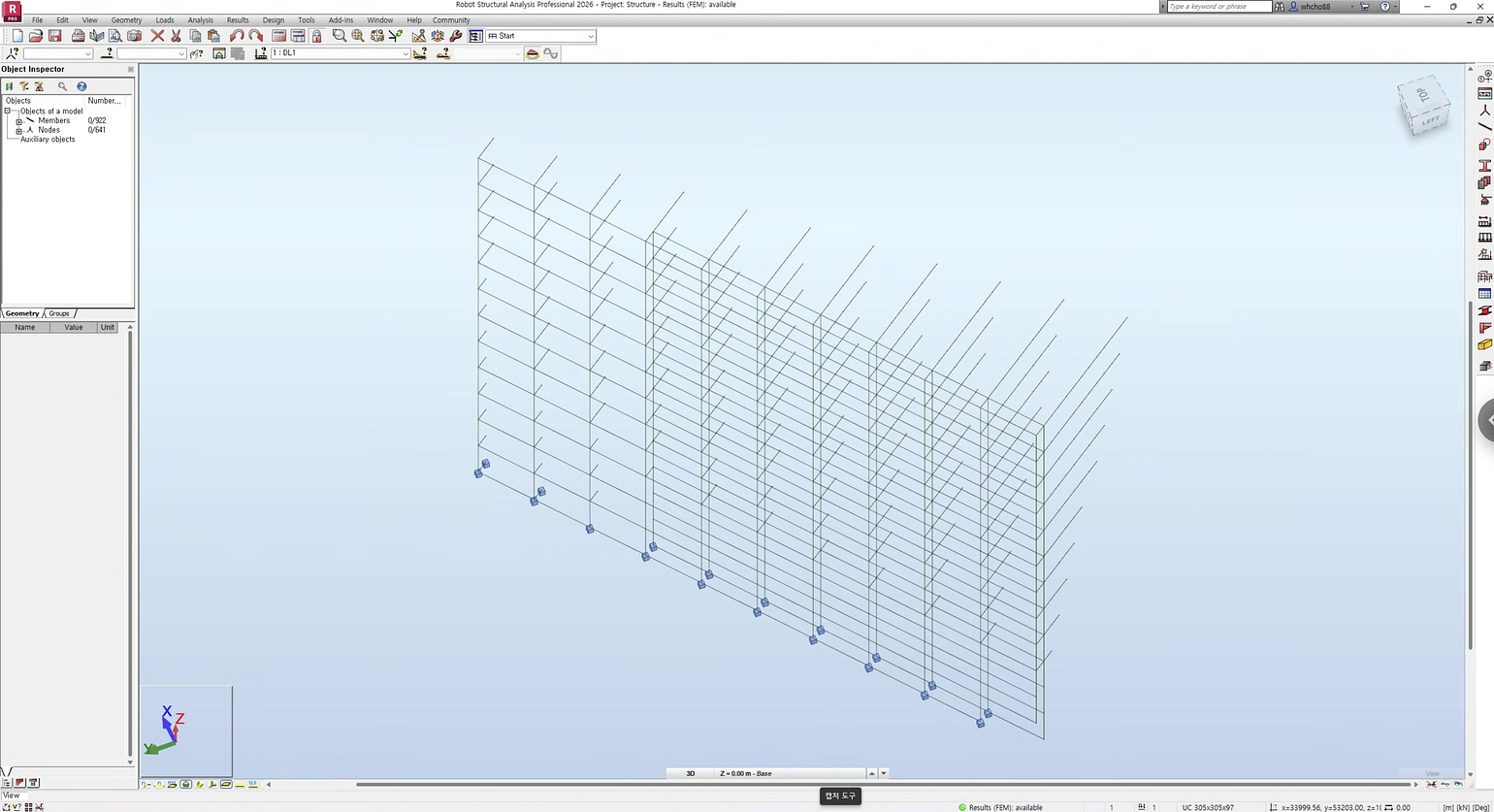
To establish and document a seamless, automated workflow connecting the parametric design tool Dynamo with Autodesk Robot Structural Analysis. This initiative covers the entire pipeline from model generation and analysis to result verification, with a systematic documentation of key errors encountered and their resolutions.
2. Summary of Work
A comprehensive Dynamo script was developed utilizing the ‘Structural Analysis for Dynamo’ package. This script generates a structural model (members, nodes) and defines its core properties, including materials, sections, support conditions, and loads. The workflow successfully transfers this model to Robot for structural analysis and then brings the calculated member force and stress results back into Dynamo for color-based visualization. Throughout this process, several critical issues were identified and resolved, including COM connection errors, database name mismatches, data type conflicts, and ‘project not calculated’ errors, ultimately leading to the creation of a stable and reliable workflow.
3. Process & Methodology
Today’s research followed a five-stage logical progression, with challenges in each stage being resolved before advancing to the next.
Stage 1: Environment Setup and Initial Connection
- Prepared the Dynamo script environment and installed the ‘Structural Analysis for Dynamo’ package.
- Attempted the most basic connection by converting a Dynamo
Lineinto an analytical member in Robot using theAnalyticalMember.ByLinenode. - Encountered a COM component error, which prompted a fundamental review of the environment setup required for communication between the two software applications.
Stage 2: Defining Structural Model Properties
- Material and Section Definition: Assigned material and section properties to structural members by linking to Robot’s database. The
Material.ByNameandSection.ByNamenodes were used. Initially, arbitrary text inputs ("Steel", "test1") led to name-based matching errors. - Support Condition Setup: Applied support conditions to specific nodes of the structure using the
AnalyticalNode.SetSupportByNamenode. This process revealed the critical difference between Dynamo's geometricPointand the structuralAnalyticalNodedata types, as well as the importance of the sequential logic: supports must first be 'defined' and then 'applied'.
Stage 3: Load Definition and Analysis Execution
- Created load cases such as ‘Dead Load’ and ‘Live Load’ using the
LoadCase.ByNamenode. - Generated loads at specific locations using nodes like
PointLoad.ByPointandUniformLoad.ByLineand assigned them to the predefined load cases. - After completing the modeling and property definitions in Dynamo, manually switched to the Robot application to execute the structural analysis via the ‘Calculations’ command.
Stage 4: Result Data Extraction and Analysis
- Retrieved numerical data, such as member forces and stresses calculated in Robot, back into the Dynamo environment using nodes like
MemberForces.GetMaxValuesListandMemberStresses.GetMaxValuesList. - Initially faced a ‘Project not calculated’ error and issues where stress results were not returned. This highlighted the necessity of re-running calculations after any model modification and the importance of checking Robot’s analysis settings.
Stage 5: Result Data Visualization
- Visualized the extracted numerical data graphically within Dynamo for intuitive interpretation.
- Used the
Math.RemapRangenode to normalize the result values (e.g., -100 to +250) to a 0-1 range suitable for color mapping. - Generated a corresponding color gradient list using the
Color Rangenode. - Applied the generated color list to the original member geometry using the
Display.ByGeometryColornode to render the final visualization.
4. Key Findings
- Clear Understanding of Software Roles: It became evident that Dynamo acts as the ‘designer/modeler’ defining the model’s geometry and properties, while Robot serves as the ‘analysis engine/engineer’ that computes the received model. The workflow must always follow the sequence: Dynamo (Generate) → Robot (Calculate) → Dynamo (Verify Results).
- The Critical Role of Name-Based Matching: All properties — materials, sections, supports, load cases — are matched using simple text strings. Using the exact names that exist in Robot’s database is crucial for preventing errors (e.g., “Steel” (X) -> “S275” (O)).
- The ‘Define then Apply’ Principle: Properties must first be ‘defined’ to create them in Robot (e.g.,
Support.ByPoint), and then 'applied' to the model by referencing their name (e.g.,AnalyticalNode.SetSupportByName). Distinguishing between definition and application nodes is vital. - Strict Distinction Between Data Types: Dynamo’s standard geometric objects (
Point,Line) are distinct from structural analysis objects (AnalyticalNode,AnalyticalMember). Support conditions must be applied to anAnalyticalNode, not aPoint. Nodes must be explicitly extracted from members using code likemembers.StartNode. - Manual Refresh of Calculation Results: Modifying the model in Dynamo does not automatically update the analysis results in Robot. A recalculation must be manually triggered in Robot after any change to obtain the latest results.
- The Value of Result Data: Bringing analysis results back into Dynamo for visualization creates a powerful environment for intuitively understanding the structural impact of design changes, enabling rapid and informed decision-making.
5. Challenges & Solutions
Challenge 1: COM Component Error with AnalyticalMember.ByLine Node
- Error Message:
Retrieving the COM class factory for component... failed due to the following error: 80040154 Class not registered. - Cause Analysis: The Dynamo package requires communication with Robot’s API, but Robot’s COM component was not registered in the OS. This indicates Robot was either not installed or its installation was corrupted.
- Solution: Installed Autodesk Robot Structural Analysis 202X and restarted Dynamo, which resolved the connection issue.
Challenge 2: ‘attribute named … exists’ Error When Applying Materials/Sections
- Error Message:
Warning: Section.ByName operation failed. attribute named test1 exists in open document - Cause Analysis: The input names (“Steel”, “test1”) did not exist in Robot’s material/section database. These nodes only find by name; they do not create new attributes.
- Solution: Opened Robot and navigated to
Tools > Job Preferences > Databasesto find the exact names of available materials ("S275") and sections ("UC203x203x46"). Copied these exact strings into the DynamoStringnodes to resolve the error.
Challenge 3: Data Type Mismatch Error When Setting Supports
- Error Message:
Warning: AnalyticalNode.SetSupportByName expects argument type(s) (AnalyticalNode[]), but was called with (Point[]). - Cause Analysis: A simple coordinate
Point, which has no structural meaning, was used as the target for the support condition. The node requires anAnalyticalNode, which represents a structural joint. - Solution: Used a Code Block (
members.StartNode;) to directly extract theAnalyticalNodeobjects from the list of createdAnalyticalMembers and fed them as the input.
Challenge 4: ‘Project not calculated’ Error When Checking Results
- Error Message:
Warning: MemberForces.GetMaxValuesList operation failed. Project not calculated - Cause Analysis: Dynamo requested result data from Robot, but no results existed because the calculation had not been run after the last model update.
- Solution: Established a standard procedure of switching to the Robot window and clicking the ‘Calculations’ button after finishing any modeling phase in Dynamo.
Challenge 5: Stress Results Not Being Returned
- Error Message:
Incorrect results type for this node - Cause Analysis: By default, Robot’s analysis settings do not compute all possible result types to optimize for speed. The option to calculate detailed stresses was disabled.
- Solution: In Robot, navigated to
Analysis > Analysis Types, opened theParametersfor the relevant load case, checked the 'Stresses' option, and re-ran the calculation. This successfully produced the stress data.
6. Next Steps & Future Plans
- Workflow Enhancement: Research methods (e.g., Python script node for API calls) to trigger Robot’s ‘Calculate’ command directly from within the Dynamo script, moving closer to a fully automated workflow.
- Advanced Visualization: Develop scripts to generate Bending Moment Diagrams (BMD) and Shear Force Diagrams (SFD) directly within the Dynamo environment, moving beyond simple color visualization.
- Parametric Optimization: Leverage the established workflow for design optimization. Use Dynamo’s optimization algorithms (e.g., Galapagos) to find the optimal geometry or member sections that satisfy specific criteria, such as minimizing total displacement.
7. Reflections & Ideas
- The integration of Dynamo and Robot is best approached not as a simple model transfer, but as ‘data communication’ between two specialized applications. Most errors arise from failing to adhere to the communication protocols (correct names, data types, and sequence of operations).
- A key question emerged: “How can we parametrically generate and analyze a section that does not exist in Robot’s database?” This points to a future challenge that would require a deeper dive into the Robot API to control the definition of sections from within Dynamo.
- Result visualization provides powerful feedback for the designer. There is a vast difference in the speed of comprehension and intuition between reading a table of numbers and seeing stress distribution as a color map. The ultimate value of this integrated workflow lies in this swift and intuitive feedback loop.
I hope you found this content helpful. Your support is what fuels this ongoing research and documentation.
If you’d like to contribute, you can buy me a coffee or become a member to take a deeper dive with me on this journey.
By becoming a member, you’ll get access to the test files and supplementary documents featured in the newsletter.
[Become a Member & Get Access Newsletter 📧 Data Box 💽 ]


댓글
댓글 쓰기